Platform Architecture & Core Philosophy
DualForceOS unites conversational agility with enterprise-grade deterministic ERP. Instead of siloed legacy database forms, workflows initiate natively from conversational dialogue between human operators and autonomous AI agents.
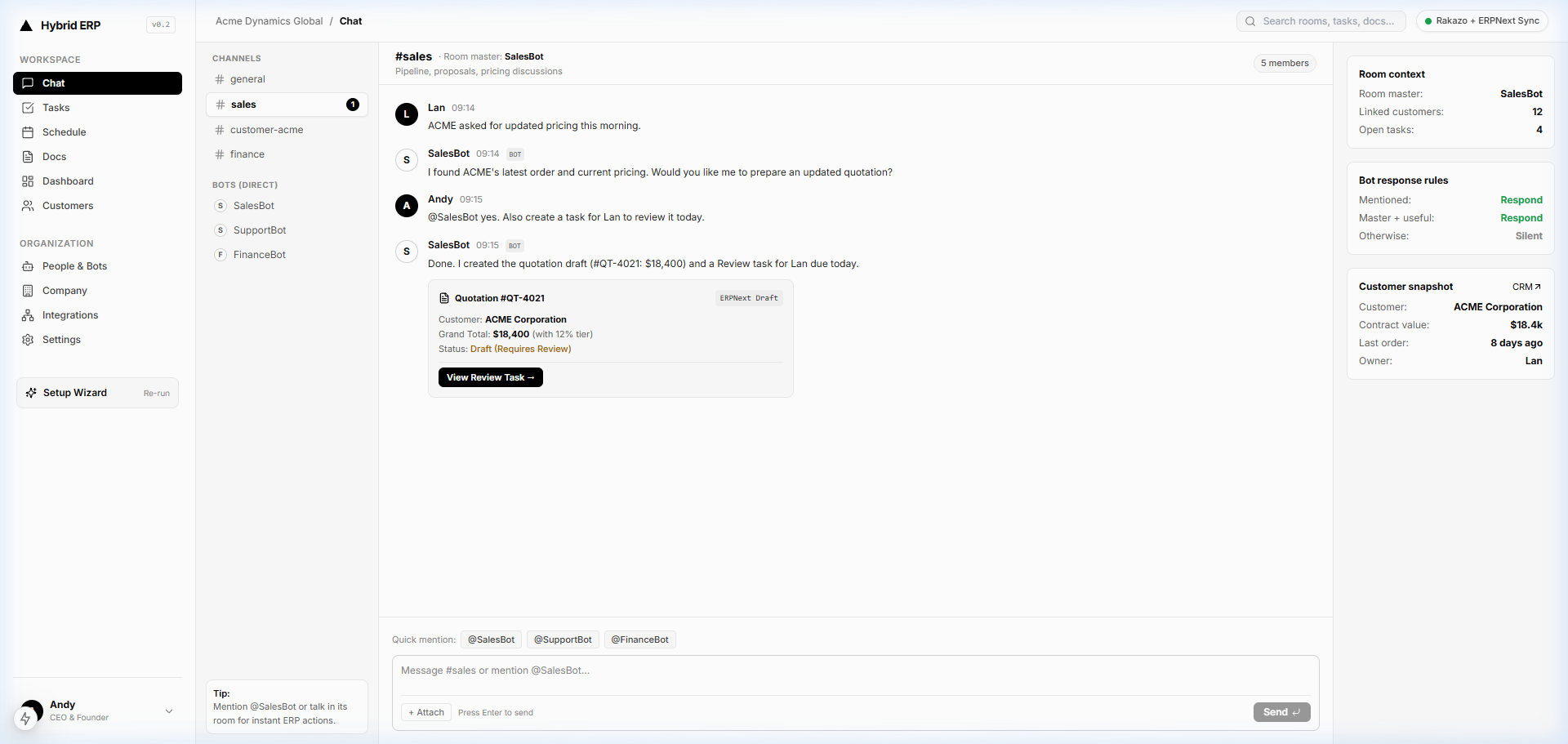
Figure 1.1 — Unified enterprise shell integrating Chat, Live ERP Objects, Kanban Tasks, Document Intelligence, and Customer Accounts.
Immutable activity log guaranteeing complete audit compliance across every write.
Local IndexedDB state updates instantaneously with optimistic recovery.
Granular role segmentation between Owner, Admin, Member, and Agent scopes.
Key Capabilities & Insights
Natural conversations express business intent; the hardened backend owns authorization, validations, database transactions, and audit records.
Quotations, invoices, customer cards, and tasks live natively inside chat feeds rather than external disconnected windows.
AI teammates operate with allocated system credentials, individual MCP tools, and dedicated workspaces alongside human colleagues.
Quick Step-by-Step
Technical Deep Dive & Operational Specifications
Event Sourcing & State Guarantees
Every create, update, or status change dispatches an append-only event into dualforce.activity_log with cryptographic payload stamps.
- Zero lost writes: concurrent edits resolve through PostgreSQL row-level locks and optimistic version vectors.
- Local state hydration: web workers stream live incremental delta patches without refreshing the application page.
- Zero third-party vendor lock-in: clean SQL tables with standard foreign key relations.
Role-Based Access Control (RBAC) Hierarchy
Permissions enforce strict isolation between human managerial tiers and automated background services.
- Owner: Unrestricted control over company profile, bank billing coordinates, and team membership roles.
- Admin: Can hire, configure, pause, or offboard AI bots, grant credential secrets, and manage public/private rooms.
- Member: Participates in room discussions, manages assigned tasks, drafts estimates, and updates customer details.
- Agent (Bot): Scoped exclusively to designated rooms and assigned MCP tools with non-bypassable permission checks.
Enterprise Chat & Communication Hub
The conversational core is engineered for ultra-fast, distraction-free team and agent interactions, featuring VIP avatar stories, category filters, threaded discussions, and rich composers.
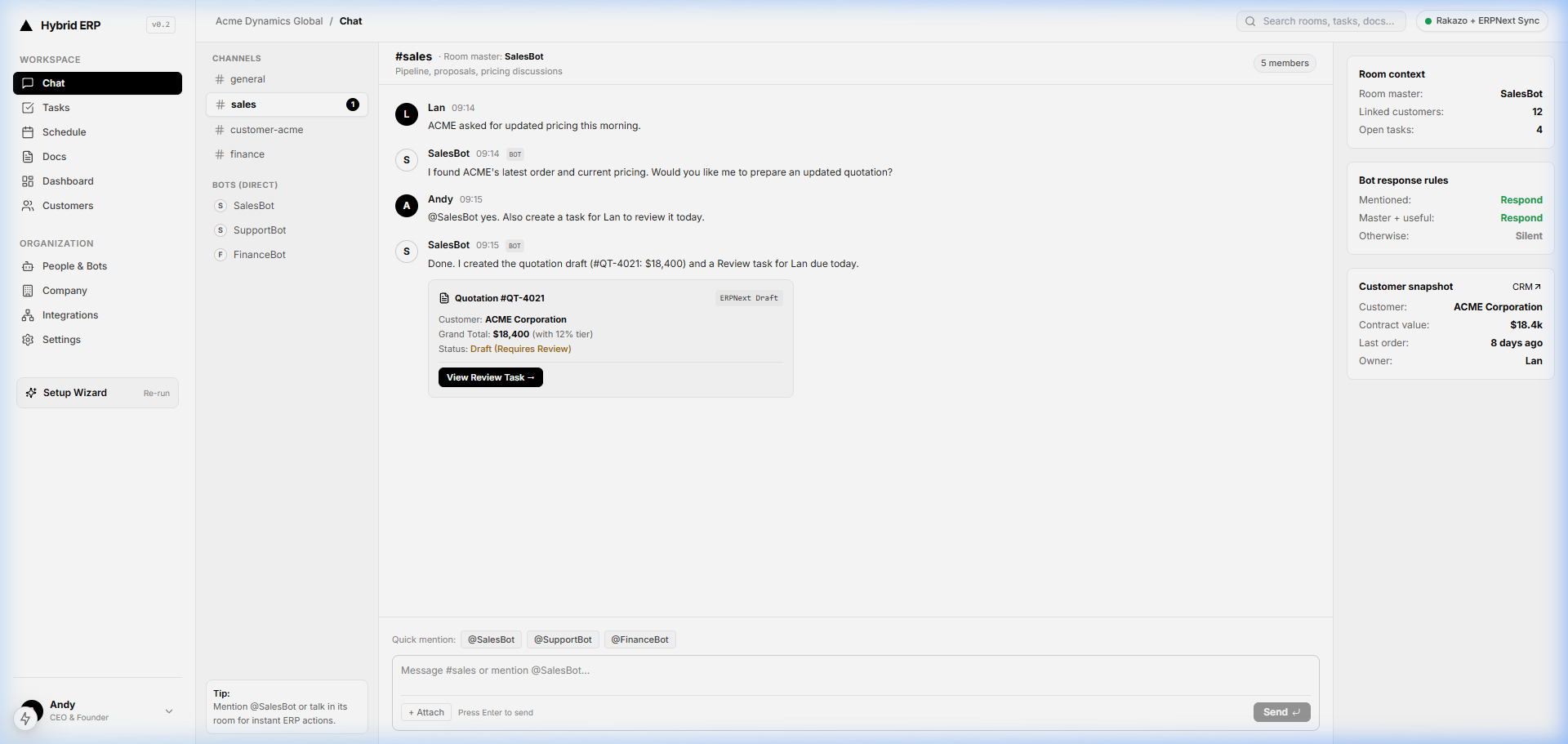
Figure 2.1 — High-density enterprise chat interface featuring VIP Story Carousel, category filters, and message timeline.
Rapid one-click channel and bot switching with real-time unread badges.
Instant segmented views for All, Unread, Channels, AI Bots, and Direct Messages.
Markdown formatting, inline code blocks, emojis, attachments, and scheduled messages.
Key Capabilities & Insights
Horizontal quick-access tray at the top of the sidebar provides immediate access to priority rooms and bots with notification badges.
Complex deal negotiations and technical problem-solving stay organized inside dedicated collapsible thread panes.
Search entire room histories with diacritic-insensitive matching and keyword highlights.
Extract shared documents, images, and pinned milestone announcements into dedicated side drawers.
Quick Step-by-Step
Technical Deep Dive & Operational Specifications
Room Topology & Master Worker Model
DualForceOS supports 4 distinct room types, each serving dedicated operational requirements:
- Channel (#): Shared public or private topic rooms for departmental teamwork (e.g., #sales, #finance, #ops).
- Customer Room: Dedicated workspace bridging client discussions directly to CRM account ledgers and order history.
- Direct Bot Room: 1-on-1 private command line with an AI agent; the bot answers every message posted.
- Human Direct Message (DM): Encrypted peer-to-peer communication between human staff members.
Slash Command Capabilities
Enter slash commands directly into any room composer for quick actions:
/remind me to check overdue invoices in 2 hours
/topic Update Q4 sales quota
/invite @Duc
/leave
/mute
Autonomous AI Teammates & Avatar Customization
AI agents in DualForceOS are not generic chatbots; they are autonomous peers configured with distinct roles, 16 custom persona avatars, dedicated system instructions, and tool calling capabilities.
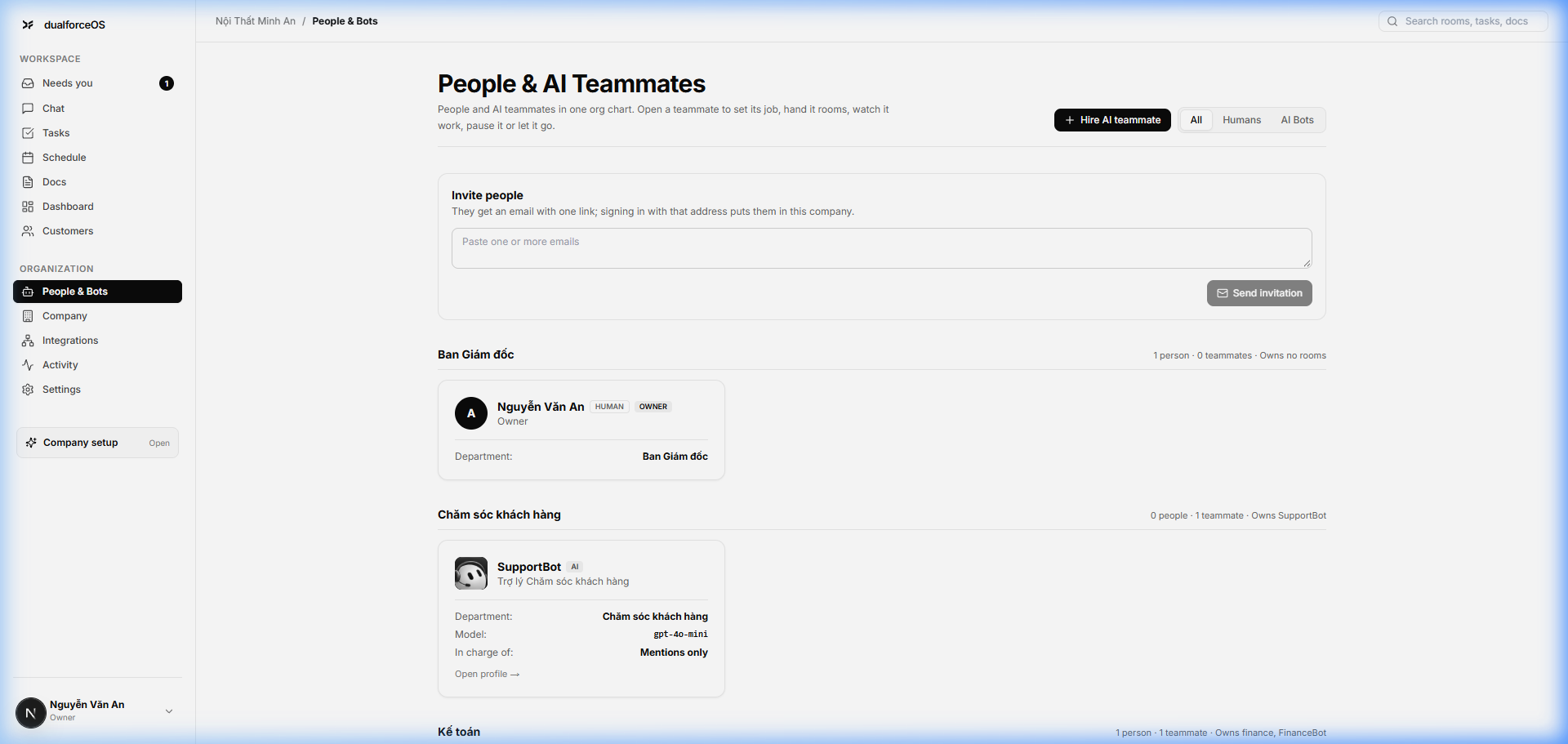
Figure 3.1 — People and Bots directory displaying human staff and autonomous AI agents with persona avatars.
Crisp 3D monochrome avatars tailored for Sales, Support, Finance, Dev, Docs, and Ops.
Online indicator displaying when a bot or human colleague is actively connected.
Complete managerial control over role definitions, instructions, and credentials.
Key Capabilities & Insights
Bots wake when explicitly tagged (@BotName), when addressing a room they master, or via intelligent plain-text router matching.
Choose from a curated 4x4 catalog of 3D monochrome persona icons representing specific departmental specialties.
Teammates interact with the database through structured tool calls (CRM lookups, task creation, quotation drafting).
Departing bots automatically transfer open tasks, rooms, routines, and calendar events to a designated successor.
Quick Step-by-Step
Technical Deep Dive & Operational Specifications
16 Avatar Persona Matrix
The 4x4 avatar palette provides visual clarity for every autonomous responsibility in your workforce:
- Row 1: Core (General Assistant), Support (Headset / CSKH), Analyst (Research / Glasses), Writer (Content / Pen)
- Row 2: Documents (Invoices / Admin), Scheduler (Calendar / Dispatch), Finance (Ledger / Bar Chart), Sales (Commerce / Dollar)
- Row 3: Developer (Code / </>), Database (SQL / Data Warehouse), Operations (DevOps / Gear), Search (Audit / QA)
- Row 4: Global (Web / Networks), Team (HR / Swarm), Security (Shield / Compliance), Concierge (Speech Bubble)
Computer Execution Modes
AI bots execute complex browser and coding operations inside sandboxed environments:
- Team Computer (Shared): Standard sandboxed instance suitable for general database queries and routine lookups.
- Dedicated Computer (Private): Isolated virtual machine provisioned for high-security workloads, accounting audits, and automated browser tasks.
Interactive In-Stream ERP Objects & Quotations
DualForceOS revolutionizes traditional ERP by embedding interactive business objects directly inside conversational messages. Estimates, quotes, and orders update live with instant approval gates.
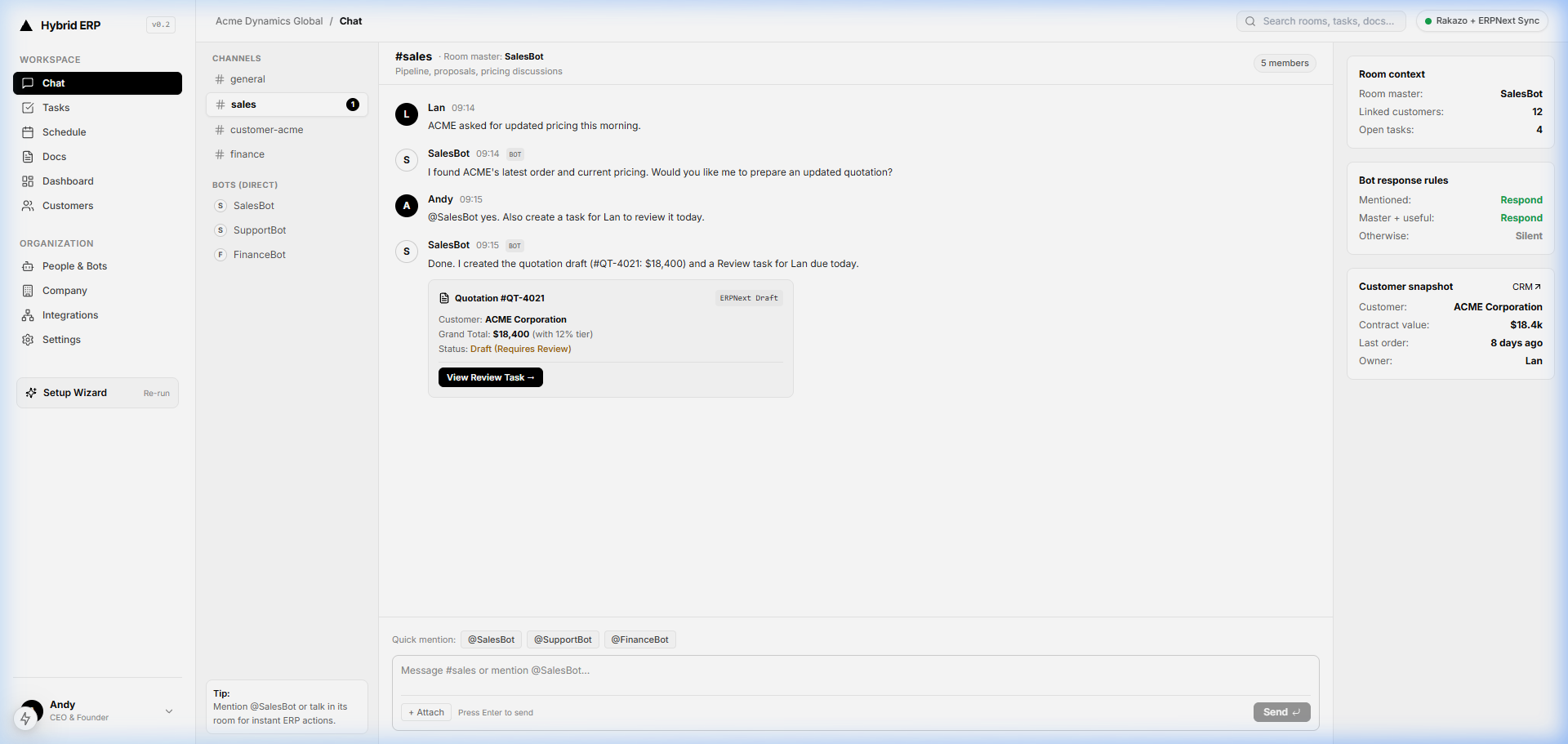
Figure 4.1 — Live interactive Quotation object drafted by SalesBot directly inside the room chat timeline.
Line items, unit pricing, quantities, discounts, and tax rates updated in real time.
Managerial sign-off buttons appear automatically when discounts exceed threshold rules.
Generate official PDF quotes and Excel orders ready for customer delivery.
Key Capabilities & Insights
When a quotation is updated or approved, all connected clients receive immediate live updates without page refreshes.
Discounts exceeding standard managerial guidelines automatically trigger an approval request in the "Needs You" center.
Calculates subtotal, line discounts, corporate tax rates, shipping, and deposits dynamically.
Every revision records who made the change (human or AI agent) and when.
Quick Step-by-Step
Technical Deep Dive & Operational Specifications
Financial Computation Engine
DualForceOS uses deterministic rounding formulas compliant with international corporate accounting standards:
Subtotal = Sum(Quantity * UnitPrice)
LineDiscount = Subtotal * (DiscountPercent / 100)
TaxableAmount = Subtotal - LineDiscount
TotalTax = TaxableAmount * TaxRate
TotalAmount = TaxableAmount + TotalTax + ShippingFee
Task Pipeline, Kanban & Multi-Perspective Tracking
Manage organizational initiatives with flexible perspectives: agile Kanban boards, dense spreadsheet tables, and conversational action checklists linked directly to customer accounts.
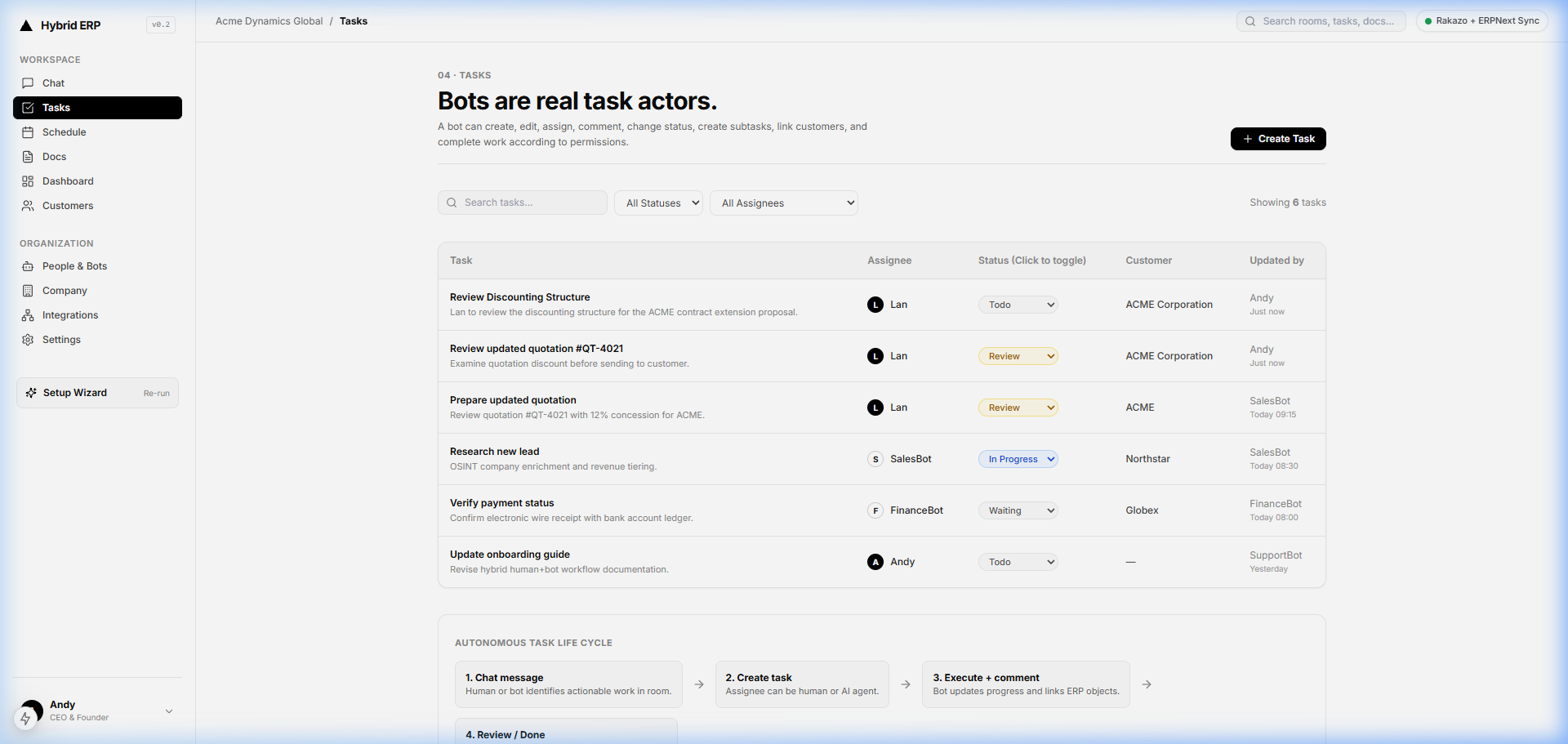
Figure 5.1 — Multi-column Kanban board organizing operational tasks across Todo, In Progress, Review, and Done columns.
Effortlessly reorder tasks and transition statuses across workflow columns.
Instantly view whether a human employee or an autonomous bot owns the deliverable.
Color-coded urgency indicators (Urgent, High, Medium, Low).
Key Capabilities & Insights
Switch seamlessly between visual Kanban cards and high-density sorting tables.
Assign tasks to humans, AI teammates, or cross-functional pairs for automated fulfillment.
AI agents update task statuses automatically as background duties and screen operations finish.
Every task links directly back to the chat room and customer account where it originated.
Quick Step-by-Step
Technical Deep Dive & Operational Specifications
Task Priority & SLA Definitions
Organize tasks according to enterprise operational urgency:
- Urgent: Immediate blocker affecting revenue or production; bot triggers immediate priority alert.
- High: Priority milestone scheduled for resolution within current business day.
- Medium: Standard operational task with regular milestone tracking.
- Low: Non-blocking backlog enhancement or prospective inquiry.
CRM, Customer Workspaces & Commercial Pipeline
Centralize customer intelligence, lifetime purchase history, contract files, and dedicated communication channels inside integrated customer workspaces.
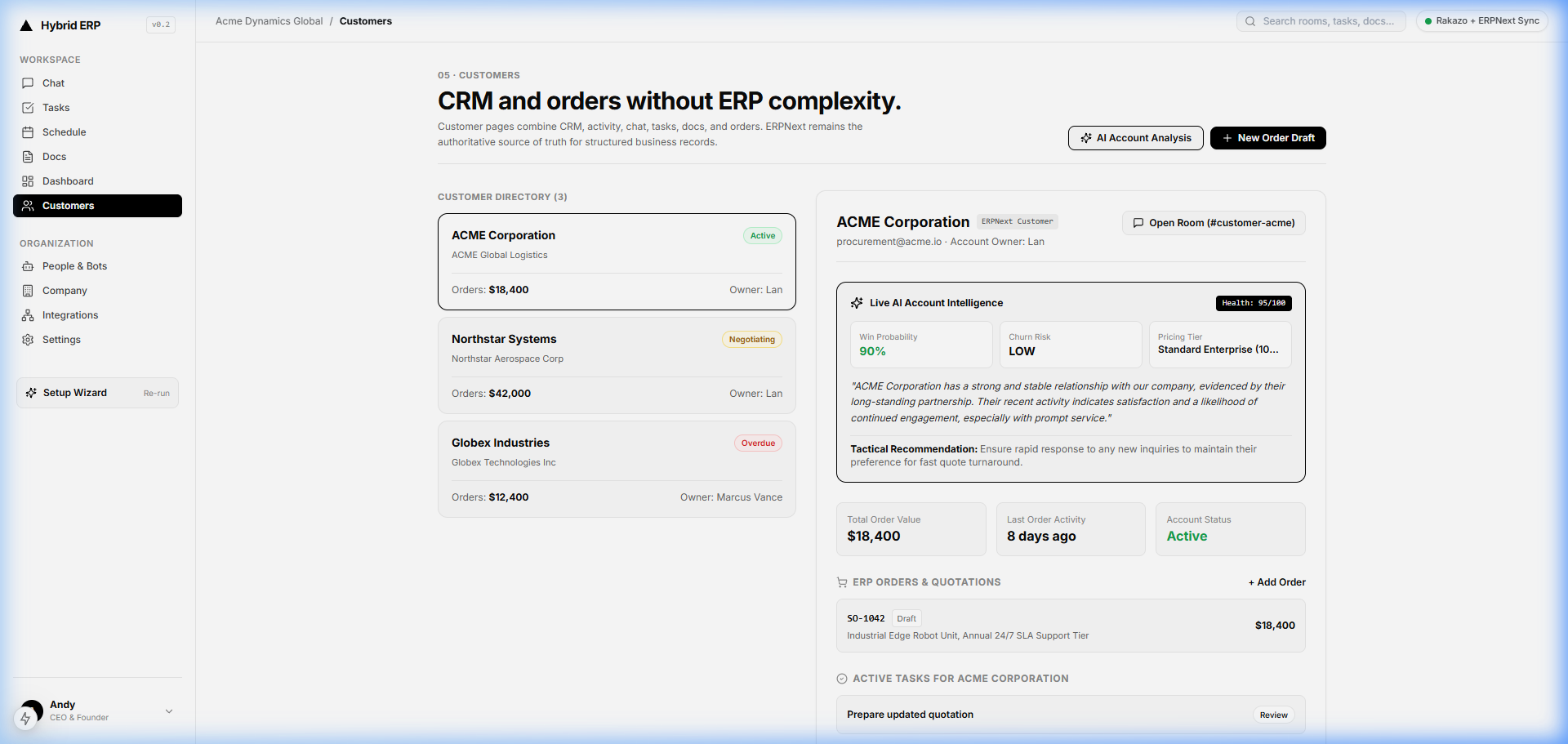
Figure 6.1 — 360-degree customer account view showing commercial order history, contact directory, and connected rooms.
Real-time calculation of total order revenue, outstanding balances, and payment status.
Direct link to the dedicated client chat room for collaborative support.
Directory of authorized buyer contacts, phone numbers, and billing addresses.
Key Capabilities & Insights
Every major customer account links to a dedicated customer room where sales reps and bots collaborate on client inquiries.
Track customer lifetime value (LTV), total purchase volume, and pending payment receivables.
Store multiple stakeholders, billing decision-makers, and technical contacts per enterprise account.
SalesBot monitors stagnant deals and alerts account managers before opportunities stall.
Quick Step-by-Step
Technical Deep Dive & Operational Specifications
Enterprise Account Statuses
Customer lifecycle tracks account engagement across 4 operational states:
- Lead: Prospective customer undergoing initial discovery and quotation review.
- Active: Formal enterprise partner with recurring sales orders and active contracts.
- VIP: High-volume account with dedicated bot monitoring and priority SLA dispatch.
- Dormant: Account with no transactions in 90+ days; triggers automated SalesBot re-engagement.
Document Intelligence, OCR & Office Generation
Ingest contracts, receipts, and invoices with automated text extraction, full-text semantic passage search, and native XLSX / DOCX / PDF office generation.
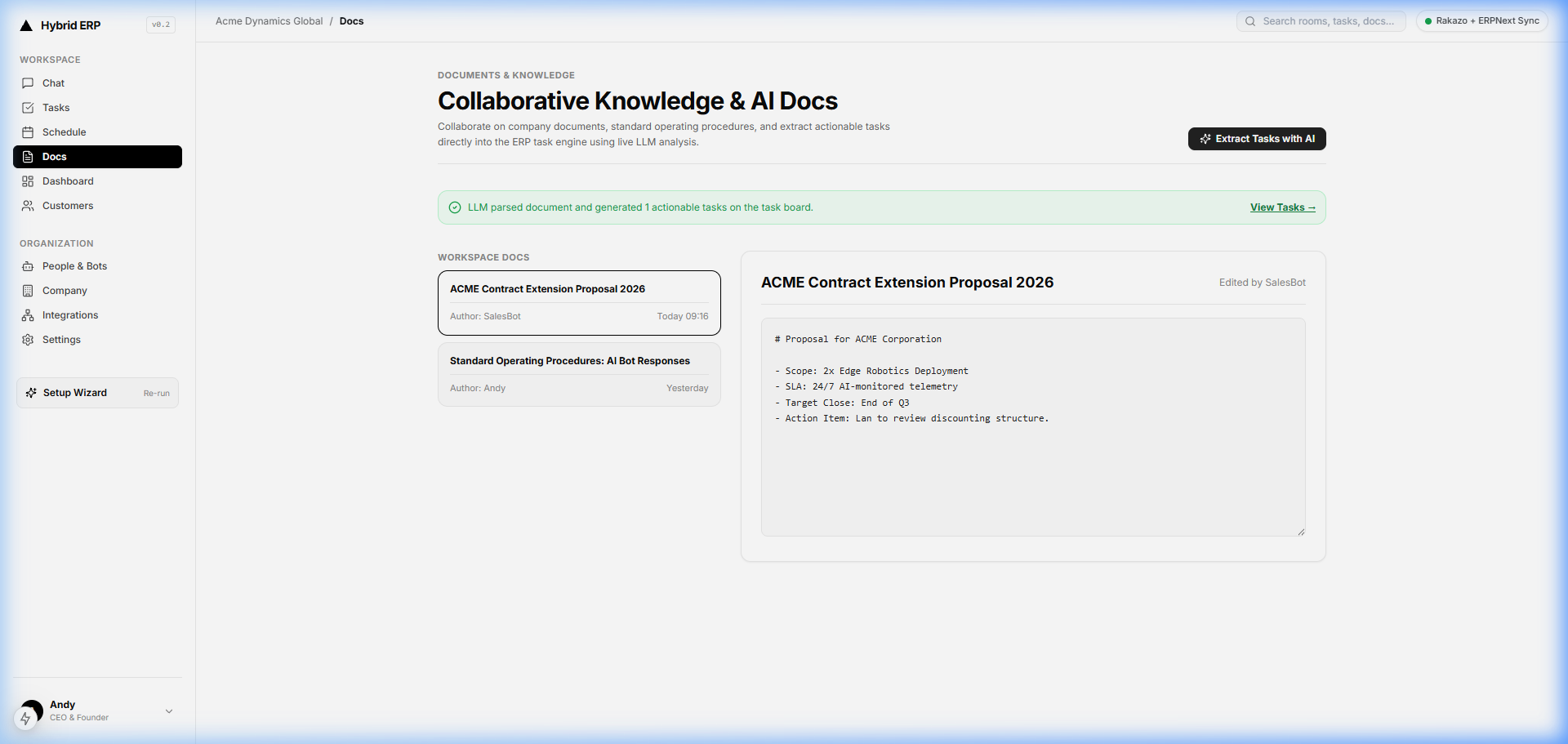
Figure 7.1 — Document viewer displaying OCR-extracted text passages, metadata tags, and office export options.
Uploaded PDF scans and images parse into clean searchable passages instantly.
Semantic search locates specific clauses and line items without opening files.
Export ERP records into formatted Word (.docx) and Excel (.xlsx) spreadsheets.
Key Capabilities & Insights
Upload PDF invoices, vendor contracts, or receipts to automatically extract tables and text passages.
Generate customer-facing quotations, pro-forma invoices, and balance sheets in Microsoft Office formats.
Categorize enterprise documentation into Contracts, Invoices, HR Policies, and Operations folders.
Track document changes across drafts with complete author timestamps.
Quick Step-by-Step
Technical Deep Dive & Operational Specifications
Supported Document Formats
DualForceOS document engine provides native compatibility with modern enterprise formats:
- PDF (.pdf): Multi-page text extraction, tabular OCR processing, and vector search indexing.
- Excel (.xlsx): Dynamic spreadsheet generation with styled headers, formulas, and numeric formatting.
- Word (.docx): Formal corporate letterheads, contract clauses, and quotation document templates.
- Markdown (.md): Native plain-text documentation and developer specifications.
"Needs You" Attention Center & Approval Gates
Never let critical bottlenecks stall operations. The "Needs You" queue consolidates every question, quote approval, failed run, and decision requiring human authorization.
Figure 8.1 — Consolidated Attention Center presenting pending approvals, agent questions, and operational decisions.
Single triage center for questions, discounts, and order confirmations.
Approve, reject, or request revisions directly without switching screens.
Highlights stagnant deals and unhandled customer inquiries before escalations.
Key Capabilities & Insights
Presents items requiring human judgment in order of operational priority.
Discounts exceeding standard managerial policies hold in queue until authorized.
When a bot encounters ambiguous instructions, it posts a structured question directly to your attention feed.
Execute approvals, overrides, or rejections with instant feedback to the waiting bot.
Quick Step-by-Step
Technical Deep Dive & Operational Specifications
Approval Gate Categories
DualForceOS standardizes 3 major automated gating rules:
- Discount Approvals: Quotations exceeding standard sales team discount limits (e.g. >15%).
- Credit Overrides: New sales orders for accounts with overdue unpaid invoices.
- Ambiguous Intent: Bot questions asking to confirm critical database overwrites or deletions.
Keyboard Shortcuts, Commands & Power User Control
Designed for keyboard-first efficiency. Navigate between rooms, switch active workspaces, edit messages, and execute administrative actions without leaving your keys.
Key Capabilities & Insights
Instant fuzzy-search popup to jump to any room, customer dossier, document, or teammate.
Press Up Arrow in an empty composer to immediately edit your most recent message.
Close open thread panes, profile dialogs, and search modals with a single keystroke.
Format bold (**text**), italic (*text*), code (`code`), and blockquotes (> text) on the fly.
Quick Step-by-Step
Technical Deep Dive & Operational Specifications
Essential Keyboard Shortcuts
Master these shortcuts for maximum daily productivity:
Cmd / Ctrl + K     Open Quick Switcher
Up Arrow (empty)   Edit last sent message
Esc                Close open thread, slide-over, or modal
Enter              Send message in composer
Shift + Enter      Insert new line in composer
@                  Trigger teammate / bot autocomplete
#                  Trigger room mention autocomplete
/                  Trigger slash command autocomplete
System Resilience, Network Sync & Diagnostics
DualForceOS is built with industrial resilience. Learn how offline caching, WebSocket reconnects, database recovery, and audit trails safeguard your operational continuity.
Key Capabilities & Insights
Network interruptions trigger automatic exponential backoff retries with local queue preservation.
Every write, hire, update, and deletion is recorded in the activity log with actor worker IDs.
Local IndexedDB snapshots cache the workspace state so your view loads in under 100 milliseconds.
Inspect bot status, core reachability, and computer screen availability from the Bot Profile.
Quick Step-by-Step
Technical Deep Dive & Operational Specifications
Diagnostic Checklist for Administrators
When troubleshooting agent responsiveness or database sync:
- Check Bot Status: Ensure the teammate is set to "ONLINE" and not paused in its profile drawer.
- Verify Room Master: Confirm the bot is either mentioned by handle (@Name) or designated as the room master.
- Review Audit Ledger: Check the activity log for any validation errors returned by background MCP tools.
- Hard Refresh Cache: Hold Shift and reload the browser to clear local client snapshot caches if needed.